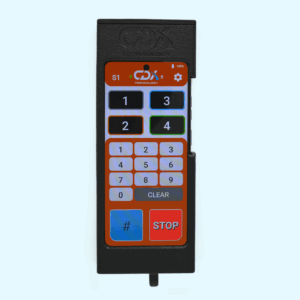
If your handheld remote isn’t connecting with the transceiver. Please try the following solutions.
Fix 1:
Reboot the app and/or phone.
Fix 2:
Plug a charger in and out to force a restart of the CDX Transceiver.
Fix 3:
Pull the phone out of the case and plug it back in.
Fix 4:
Check if there are any lights turned on the back of the CDX Transceiver (you will need to unscrew the top cap to see this).
If no lights are on when the phone is plugged in to the CDX Transceiver, please contact us.
If your handheld remote isn’t charging, the issue may be with the case or connection.
Fix 1:
If the handheld has some battery left but doesn’t want to charge,
check if the USB-C port on the case is dirty. If it is clean but still does not charge, contact us.
Fix 2:
Carefully remove the phone from the case and charge the phone directly using a compatible charger.
NOTE:
Please make sure the battery does not go to 0%, keep the phone charged preferably above 20% at all times.
If the app shows it is sending speed messages, but the karts are not responding, try the following:
Fix:
Please check if you have set the correct TrackID and PIN (needed for dual tracks).
Note: If you do not have dual tracks, you can remove the Track ID and PIN completely or set it to Track ID 0000 and PIN 0000
A restart of the phone/tablet can fix this issue, hold the power button and click “RESTART”.
No, please use the provided charger. Other chargers can have different charging speeds or voltages that are not compatible.
This behavior is only from v1.8.1 till v1.8.3.
A fix for this is to enable custom speed button names. Please update to the latest version.
If your handheld remote isn’t connecting with the transceiver. Please try the following solutions.
Fix 1:
Reboot the app and/or tablet.
Fix 2:
Make sure you connect the tablet transceiver in the correct order.
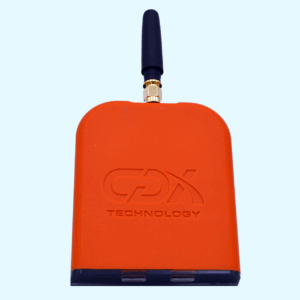
There are 2 USB-C ports on the tablet transceiver, when you have the antenna pointed up (like the image above)
and the USB-C connectors on the bottom, the left USB-C port is for charging and the right USB-C port is for data to the tablet.
First connect the USB-C cable for data to the tablet.
Let it establish a connection with the CDX Remote App
and then connect the USB-C charging cable to the left USB-C port on the tablet transceiver.
If the app shows it is sending speed messages, but the karts are not responding, try the following:
Fix:
Please check if you have set the correct TrackID and PIN (needed for dual tracks).
Note: If you do not have dual tracks, you can remove the Track ID and PIN completely or set it to Track ID 0000 and PIN 0000
A restart of the phone/tablet can fix this issue, hold the power button and click “RESTART”.
No, you need a specific antenna. Please contact your reseller or inform us.
No, please use the provided charger. Other chargers can have different charging speeds or voltages that are not compatible.
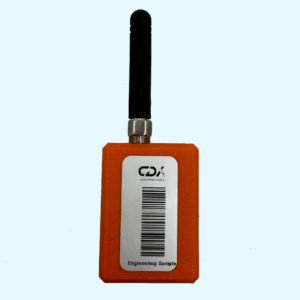
If your phone isn’t connecting with the transceiver. Please try the following solutions.
Fix 1:
Reboot the app and/or phone.
Fix 2:
Re-plug the CDX USB Transceiver cable or 180-degree connector with the phone and try again.
Fix 3:
Open Settings -> Info and check if CDX USB Serial Number shows “CDX” and CDX USB Manufacturer shows “CDX Technology”, if this shows FTDI, please contact us.
If the app shows it is sending speed messages, but the karts are not responding, try the following:
Fix:
Please check if you have set the correct TrackID and PIN (needed for dual tracks).
Note: If you do not have dual tracks, you can remove the Track ID and PIN completely or set it to Track ID 0000 and PIN 0000
A restart of the phone/tablet can fix this issue, hold the power button and click “RESTART”.
No, you need a specific antenna. Please contact your reseller or inform us.
No, please use the provided data cable to connect the transceiver to the phone.
Yes, with “Legacy USB” mode enabled in the preferences menu this is possible but not advised!
Please contact us first before using this.
Keep your device running smoothly with the latest software.
Download updates here to ensure you have the newest features, improvements, and security enhancements.
To help us resolve software issues quickly,
please download and install the AnyDesk remote support tool.
This allows our team to securely access your system and provide direct assistance.
Need guidance? Our user manuals provide step-by-step instructions, tips,
and detailed information to help you get the most out of your product.
If you’re unable to resolve the issue using the steps above, our support team is here for you.
Contact us by email at support@cdx-technology.com
Or give us a WhatsApp at +31 6 141 709 24
We’ll be happy to guide you through the process.
Mo-Fri 9-5 (CET/CEST)
Sat-Sun: Limited availability, responses may be delayed.
Response times may vary depending on time zones.